
How to shop online with SuperValu
A step by step guide on how to shop online with SuperValu in Ireland
If you are already a member of SuperValu.ie you first need to sign in by clicking the green sign in button highlighted below. If you are new to shopping online with SuperValu you will need to register first before you start shopping.

To register you need to go through a few steps before you start shopping.
Step 1 - Do you have a Real Rewards Card?

If you have a Real Rewards Card click 'yes' and fill in the details as requested to sign up. If you don't have a Real Rewards Card click 'no' and move on to step 2.
Step 2 - Fill in your details
The next step is to fill in your details. These are just the usual forms you fill in when you are shopping online through any website. The first part to fill in is the delivery address as shown below, this may take a few minutes to fill in but it is well worth it when you save the time not having to go to the shops.
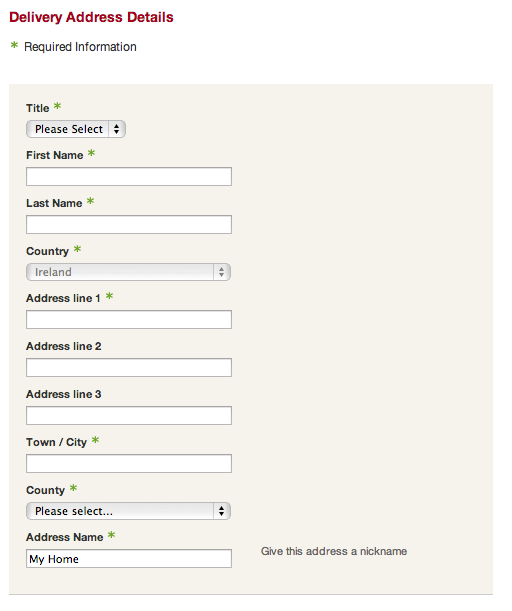
Now that you have filled all the boring stuff out move on to step 3
Step 3 - Signup Confirmation
Hooray! Thats all the forms you need to fill in and once you have clicked the button

you will arrive at that the Signup Confirmation as shown below.
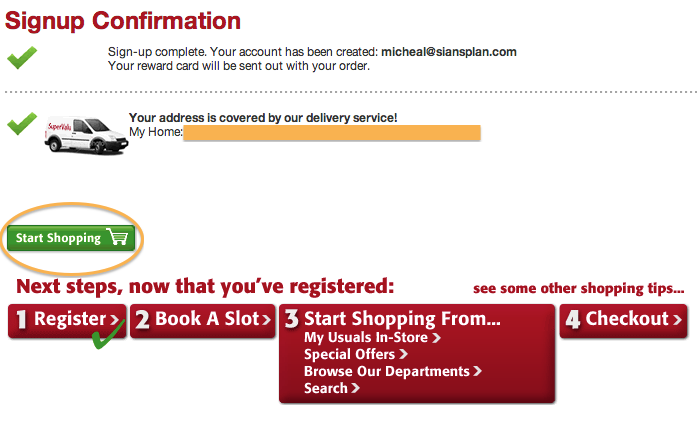
Now click start shopping for the fun bit.
Step 4 - Start shopping
Once you have clicked on the 'Start Shopping' button this will take you to the shopping online homepage. To copy your shopping list which you made in Sian's Plan you need to click on the 'My Shopping List' tab

Step 5 - Paste your Sian's Plan shopping list
Now you need to paste your shopping list which you have copied from Sian's plan into the box highlighted below. To do this you need to right click your mouse and click 'Paste'
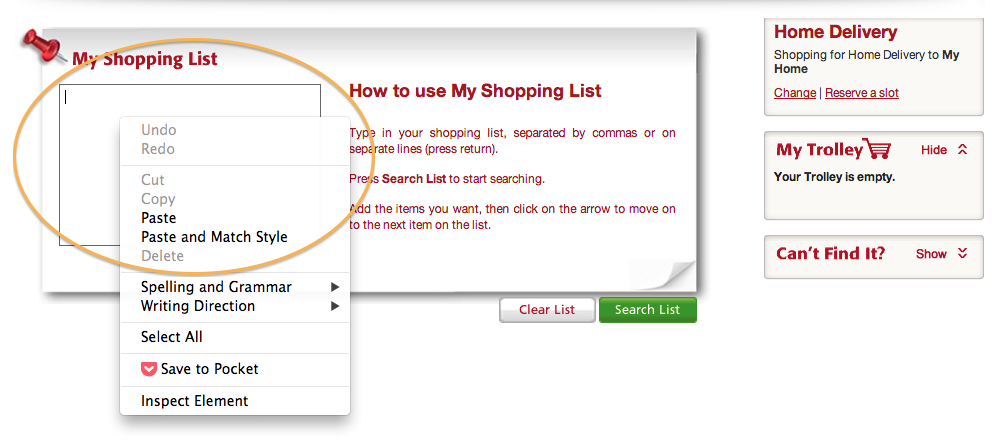
Your shopping list will now be in the box "My Shopping List' box as seen below. If it doesn't appear you may need to go back to Sian's Plan and copy the list once again.

Now you need to click the green button 'Search List' which you can see above. By clicking on each separate item in your shopping list, a list of related products will appear below and you can then add which one you want to your shopping basket as your can see here.

As you add items to your list they will appear to the right of the page "My Trolley' as seen here.
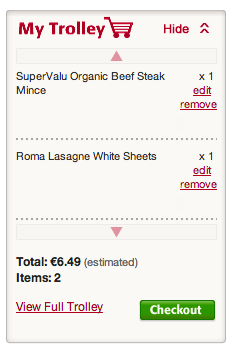
Once you have chosen your shopping click the 'Checkout' button, this will take you to a new page where you pick the delivery time you want.

Click on whatever day and time is convenient for you to have your shopping delivered. We are nearly there now. The last thing to do is add your payment details and click 'Place Order'

Your done! Happy shopping and make most of that time your saving by not going to the shops. If you need any other help just send us a message and we will get back to you as soon as we can.